Table of Contents
The Ultimate Guide to Fixing Aniimo Not Working on PS5 Error
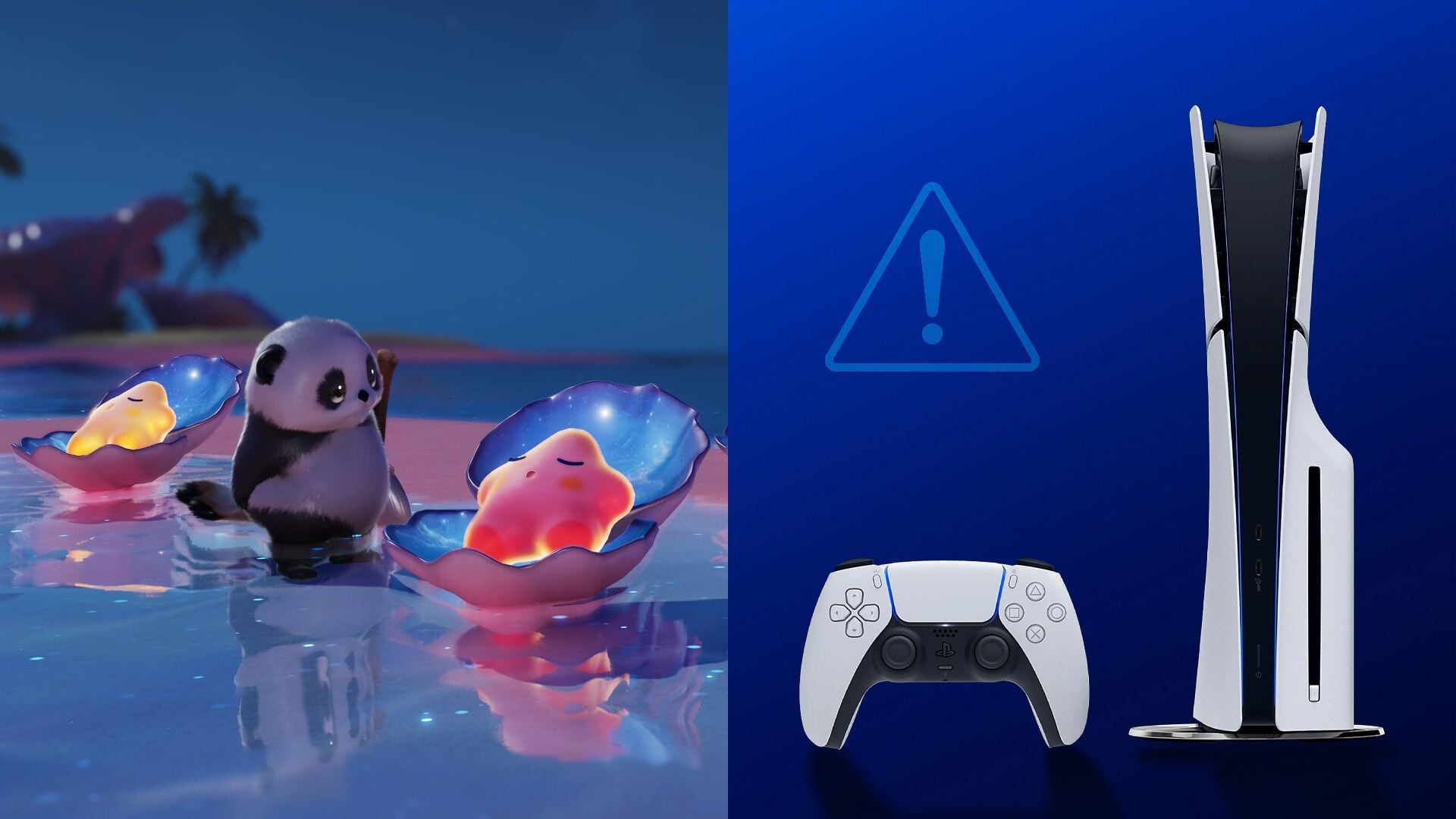
Are you ready to embark on an exciting adventure in the continent of Idyll with Aniimo, only to be met with technical issues on your PS5? You’re not alone! Many players experience crashes and freezes that can put a damper on their gaming experience. But fear not, as we have compiled a list of solutions to help you get back into the game in no time.
Possible Fixes for Aniimo Not Working on PS5 Error
Encountering a bug right at launch can be frustrating, but there are simple reasons behind it. Corrupted files, outdated software, or overloaded servers are often the culprits. Let’s explore some possible fixes that might solve the Aniimo not working on PS5 error:
- Restart your PS5
- Make sure Aniimo and PS5 are fully updated
- Rebuild the PS5 database in Safe Mode
- Uninstall and reinstall the game
1) Restart Your PS5
A simple restart can work wonders by clearing out temporary bugs and memory buildup that may be causing issues with Aniimo. Follow these steps to restart your PS5:
- Press the PlayStation button on your controller to open the Control Center.
- Navigate to the power icon on the far right.
- Select the option to restart the console.
- Wait for the system to boot up and try launching the game again.
2) Make Sure Aniimo and PS5 Are Fully Updated
Ensure that both Aniimo and your PS5 system are running the latest updates. Playing on outdated versions can lead to connection errors or the game not launching. Follow these steps to check for updates:
- Go to your game library and highlight the Aniimo icon.
- Press the Options button and select Check for Update.
- To check your system software, go to Settings, then System, and select System Software Update.
3) Rebuild the PS5 Database in Safe Mode
If the game continues to freeze or crash, rebuilding the PS5 database in Safe Mode can help fix any corrupted entries. Follow these steps to rebuild the database:
- Turn off your console completely by holding the power button.
- Hold the power button again until you hear a second beep.
- Connect your controller using a USB cable and press the PlayStation button.
- Select Rebuild Database from the Safe Mode menu and wait for the process to complete.
4) Uninstall and Reinstall Aniimo
If all else fails, a clean reinstall of Aniimo may be necessary to resolve any corrupted installation files. Follow these steps to uninstall and reinstall the game:
- Highlight the game on your home screen or in the library.
- Press the Options button on your controller.
- Select Delete and confirm your choice.
- Head over to the PlayStation Store to download the game again.
Hopefully, one of these troubleshooting steps will get your game running smoothly so you can fully enjoy the adventure on the continent of Idyll. Don’t let technical issues hold you back from exploring the vast open world and catching unique creatures in Aniimo!
Edited by Ripan Majumdar