Table of Contents

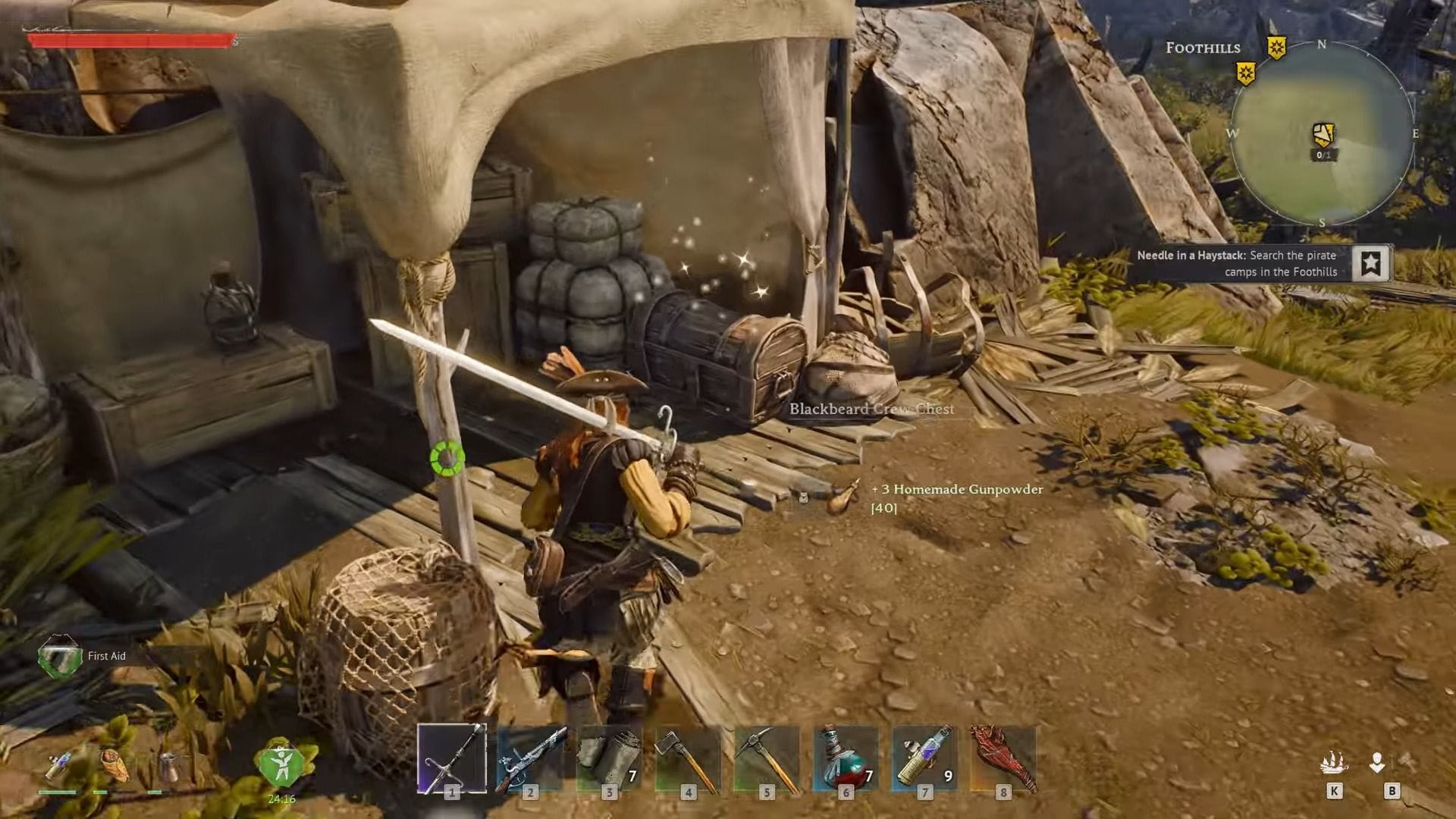
Windrose has just been released on PC; you can now download it through the Steam client. Developed using Unreal Engine 5, this pirate-themed survival-adventure game features dynamic combat and captivating environments. However, you might encounter some technical challenges when trying to launch the game. Specifically, you may come across the Windrose not opening on Steam error, a recurring issue from the game’s initial demo.
As of now, there is no definitive solution available, but there are a few potential workarounds to help you start playing. Here are some suggested fixes and reasons for Windrose not launching on Steam.
How to Troubleshoot Windrose not Opening on Steam
Several factors could be causing Windrose to fail to open on Steam, such as corrupted files, outdated graphics drivers, or restricted permissions. Consider trying one of these solutions to resolve the issue:
Verify the Game Files
If game files become corrupted due to writing errors or interrupted downloads, it can prevent the game from launching. You can resolve this by verifying the integrity of the game files using the Steam client:
- Open Steam and go to the Library tab.
- Locate Windrose, right-click on it, and select Properties.
- Navigate to Installed Files.
- Click on “Verify integrity of game files”.
After completing this process, the launcher will scan the game and repair any damaged files. Please be patient as this may take some time.
Update GPU Drivers
If outdated graphics drivers are causing Windrose to fail on Steam, updating them can resolve the issue. Here’s how you can update drivers for both AMD and NVIDIA GPUs:
NVIDIA GPUs
- Open the NVIDIA application.
- Go to the Drivers tab.
- Click on “Check for updates”.
- Download and install the latest driver.
AMD GPUs
- Launch AMD Software Adrenalin Edition.
- Access Settings.
- Click on “Manage Updates”.
- Check for new drivers and install the latest version.
Enable Windows 8 Compatibility Mode
Previous issues with the Windrose demo suggest that restricted permissions may be causing the game to fail to launch. Players were able to resolve this by enabling Windows 8 compatibility mode:
- Navigate to the folder containing the game’s executable file.
- Right-click on the icon and select Properties.
- Go to the Compatibility tab.
- Choose “Run this game in compatibility mode for Windows 8”.
- Click on Apply.
These are some potential solutions for addressing the issue of Windrose not opening on Steam. It’s important to note that these fixes are temporary and may not guarantee a resolution.
Edited by Akash Paul