Table of Contents
Welcome to the Future of Gaming with Xbox Mode on Windows 11
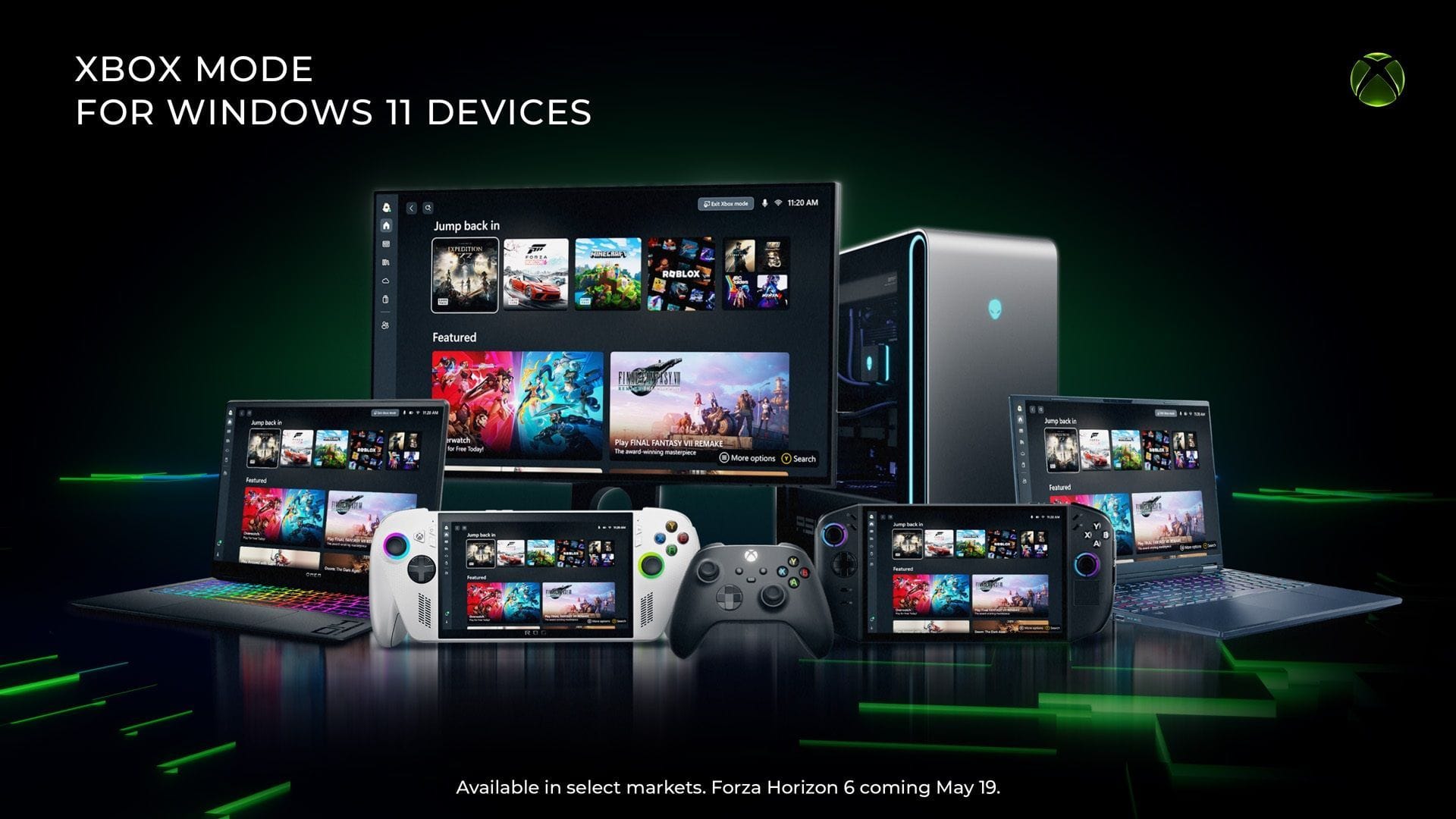
Imagine a world where your gaming experience is seamless, smooth, and optimized for performance. Well, with the latest update from Microsoft for Windows 11, that world is now a reality. On April 30, 2026, Microsoft introduced Xbox mode, previously known as Xbox Fullscreen Experience (FSE), to enhance your gaming experience like never before. This feature was first unveiled at GDC 2026, and now it’s finally available for all gamers to enjoy.
Understanding Xbox Mode: Elevating Your Gaming Experience
For those unfamiliar with Xbox mode, it’s a game-changing feature that launches a special user interface on your Windows 11 PC. This interface suspends background apps and services to allocate more memory and CPU resources to your games. As a result, modern titles run better, smoother, and more efficiently, providing you with the ultimate gaming experience.
How to Enable Xbox Mode on Windows 11
If you’re ready to take your gaming to the next level with Xbox mode, here’s a step-by-step guide on how to enable it on your Windows 11 PC:
- Start by opening the Settings app and selecting Windows Update from the left pane.
- In the Windows Update page, click on the Check for updates button.
- Locate the KB5083631 update and proceed to install it. If you don’t see it, check the Update History to confirm its installation.
- Once the KB5083631 update is installed, restart your PC to apply the changes.
- Now, head over to the Microsoft Store and update the Xbox app to ensure compatibility.
With these steps completed, Xbox mode should be fully installed on your Windows 11 PC, ready to revolutionize your gaming experience.
Activating Xbox Mode for Optimal Performance
Now that Xbox mode is installed, it’s time to activate it for the best gaming performance. Here’s how you can do it:
- Open the Settings app and navigate to Gaming in the left pane.
- Select Xbox mode and toggle the switch next to “Enable Xbox mode.”
- Additionally, enable the “Show Xbox mode in Task View” and “Show accessibility control hints in Task View” options.
- Launch the Xbox app and click on Xbox mode to activate the feature.
Once activated, your PC will enter Xbox Mode, providing a specialized full-screen user interface that optimizes resources for your games. This feature is particularly beneficial for computers with limited RAM, enhancing performance significantly.
And when you’re ready to return to your regular Windows 11 screen after gaming, simply click the “Exit Xbox mode” button for a seamless transition.
Conclusion
With the introduction of Xbox mode on Windows 11, Microsoft has once again raised the bar for gaming performance and optimization. By following the simple steps outlined in this guide, you can unlock the full potential of your PC and enjoy a gaming experience like never before. Say goodbye to lags, interruptions, and performance issues – Xbox mode is here to transform your gaming world.