Table of Contents
The Ultimate Guide to Optimizing Halo Campaign Evolved for 1440p on Mid-Range PCs
Are you ready to immerse yourself in the visually stunning world of Halo Campaign Evolved? This demanding Unreal Engine 5 remake promises an unparalleled gaming experience, but it can push mid-range gaming PCs to their limits, especially at 1440p resolution. To ensure you get the best performance without compromising on the breathtaking visuals, it’s crucial to optimize your settings.
Understanding the Hardware Requirements
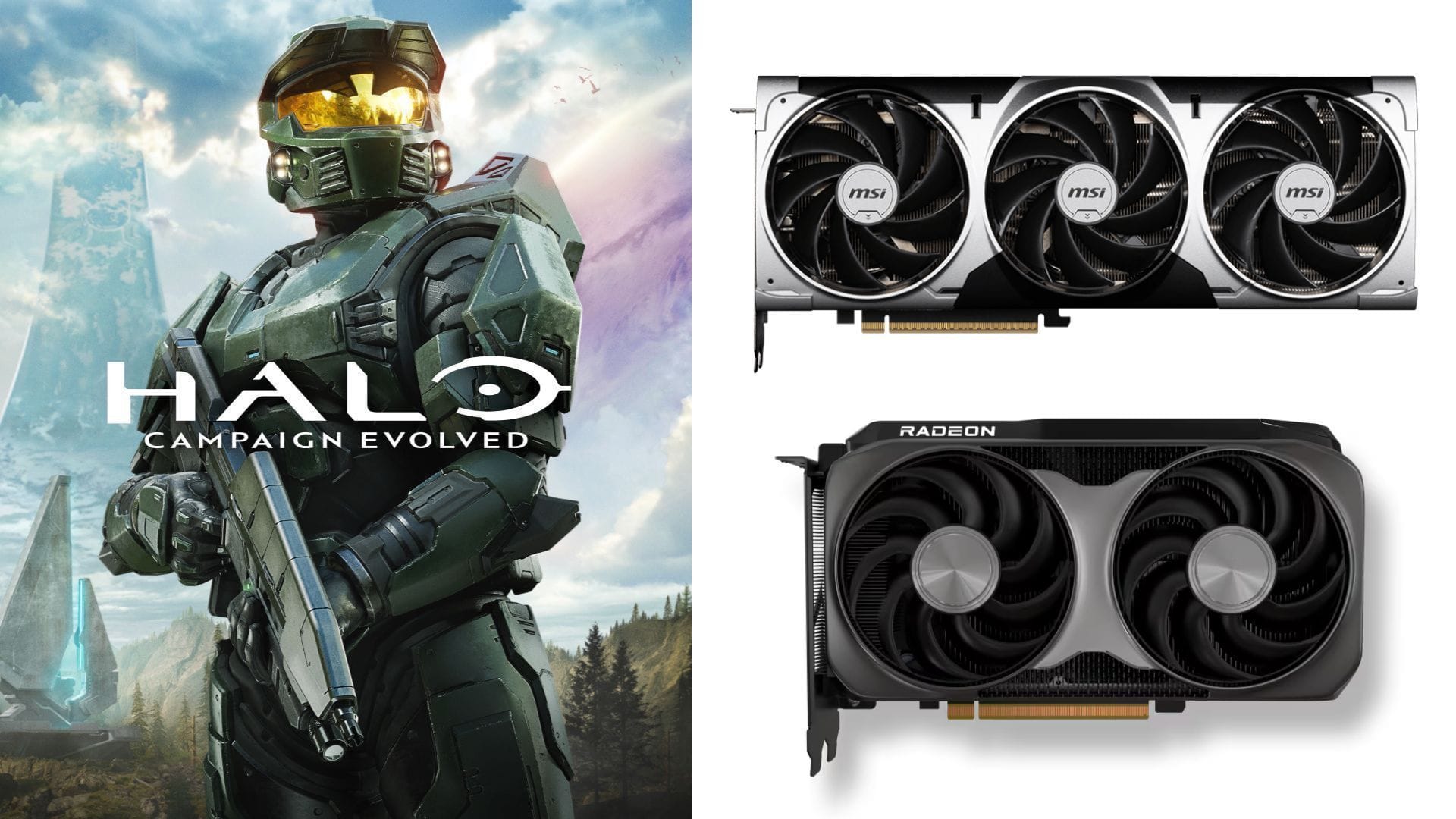
Before diving into the settings, it’s essential to understand the hardware requirements of Halo Campaign Evolved. According to Halo Studios, the game recommends a minimum of an AMD Radeon RX 9070 or an Nvidia 3080 Ti to run at the ideal settings. This translates to roughly 12 to 16GB of VRAM needed to support resolutions like 1440p or 4K.
For mid-range PCs, GPUs like the Nvidia GeForce RTX 3080, 4070, 4080, or AMD’s Radeon RX 6700 XT, 7700 XT, 9060 XT, and 9070 XT are suitable choices to ensure a smooth gaming experience.
Optimal Settings for Mid-Range PCs
Here are the best settings to enhance your Halo Campaign Evolved gameplay on mid-range PCs:
Screen Calibration
- Screen Calibration: Default
Frame Rate
- VSync: Off
- Minimum Frame Rate: 30 (greyed out)
- Frame Rate Limit: None
Display
- Borderless Fullscreen: On
- Display Resolution: 2560 x 1440
- Select Monitor: Default
- Resolution Scale: 100%
Graphics
- Quality Preset: Ultra (or High with a 12GB VRAM GPU)
- Effects Quality: Ultra
- Geometric Quality: Ultra
- Global Illumination Quality: Ultra
- Lighting Quality: Ultra
- Texture Quality: Ultra
- Reflections: Ultra
- Atmosphere Quality: Ultra
- Post-Processing Quality: Ultra
Video Motion & Effects
- Screen Shake: On
- Motion Blur: Off
Advanced
- Upscaling Technique: DLSS / FSR (depends on GPU)
- Upscaling Quality: Ultra
- ASYNC Compute: On
- Low Latency Mode: Default
For optimal performance at 1440p, set the graphics preset to Ultra quality. Enabling Nvidia DLSS or AMD FSR upscaling can significantly enhance performance while maintaining visual quality. Consider enabling Motion Blur and VSync based on your preferences and monitor capabilities.
Conclusion
By following these recommended settings and optimizing your hardware accordingly, you can enjoy the immersive world of Halo Campaign Evolved at 1440p on a mid-range PC. Feel free to experiment with the settings to find the perfect balance between performance and visuals for an unparalleled gaming experience.