Table of Contents
The Mysterious Black Screen in Castlevania Belmont’s Curse
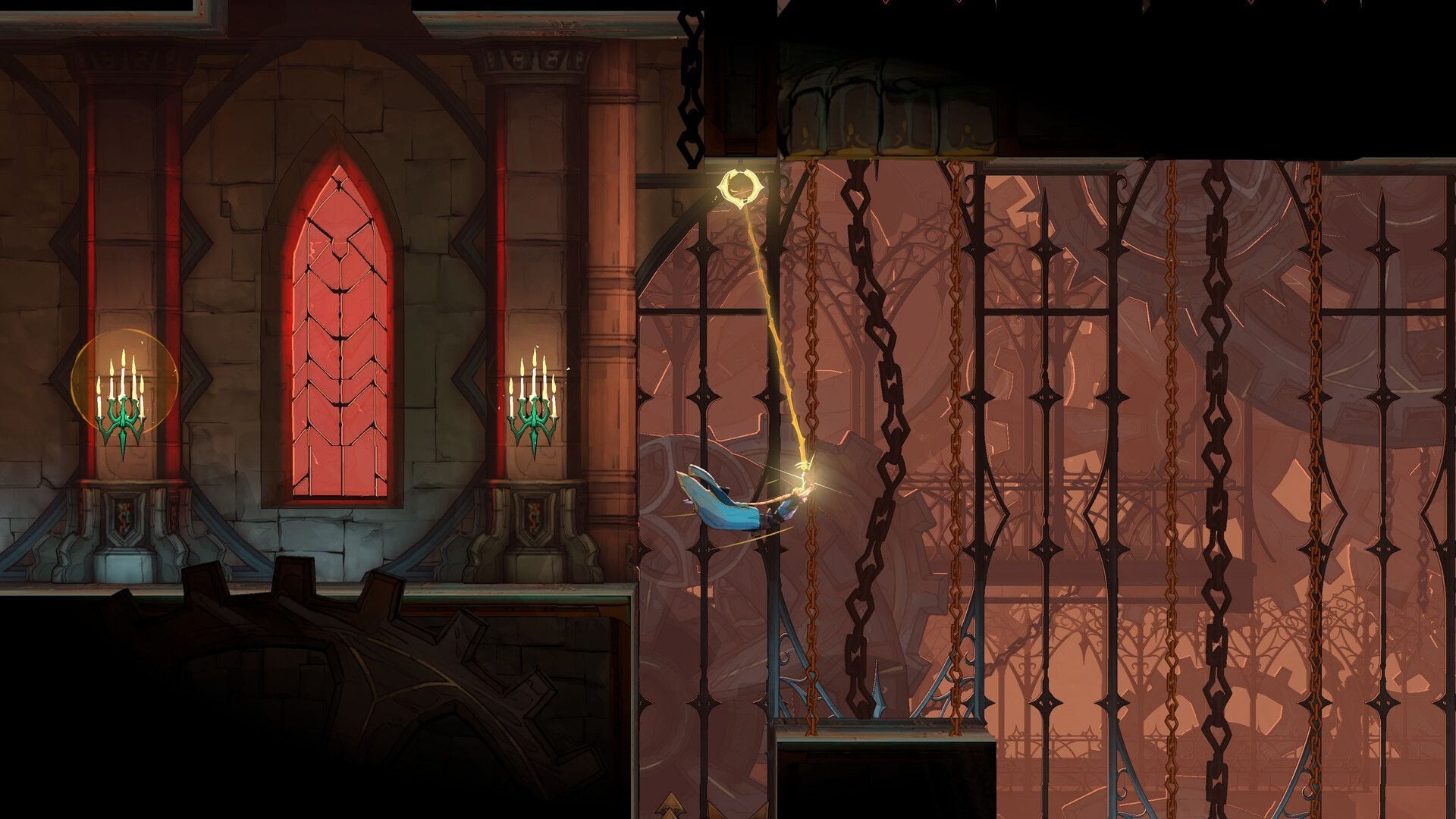
Immerse yourself in the captivating world of Castlevania Belmont’s Curse, filled with stunning visuals and a unique art style. However, some players are encountering a frustrating black screen error that hinders their ability to fully enjoy the game. During certain cutscenes, players are greeted with a black screen while the audio continues to play, leaving them unable to appreciate the beauty of the game.
Facing the Black Screen Dilemma
If you’re one of the unfortunate individuals experiencing the black screen error in Castlevania Belmont’s Curse, don’t panic. We’re here to provide you with effective solutions to overcome this issue and get back to enjoying the game.
Possible Remedies for the Black Screen Error
1. Verify Integrity of Game Files
One of the initial steps to address the black screen error is to verify the integrity of your game files. Follow these simple steps:
- Launch Steam.
- Go to your Library.
- Right-click on Castlevania Belmont’s Curse and select Properties.
- Click on “Installed Files.”
- Choose the option to verify the integrity of your installed files.
Allow Steam to complete the verification process, and then relaunch the game. Many players have reported that this simple fix resolved the black screen error for them.
2. Disable FreeSync and G-Sync
Variable Refresh Rate (VRR) technologies like Nvidia G-Sync and AMD FreeSync can sometimes cause conflicts with the game. To tackle this issue:
- Nvidia: Open the NVIDIA Control Panel and navigate to “Display” to toggle G-SYNC on or off.
- AMD: Access the AMD Software: Adrenaline Edition, go to “Gaming,” and turn off FreeSync in the display settings.
3. Update Your Drivers
Outdated graphics drivers can also contribute to the black screen error. Stay up to date by following these steps:
- Nvidia: Download the Nvidia app, go to the Drivers tab, and select “Game Ready” drivers to install updates.
- AMD: In the AMD Software: Adrenaline Edition, check for and install driver updates in the Gaming section.
- Intel: Utilize the Intel Driver and Support Assistant app to ensure your Intel graphics card is running with the latest updates.
After updating your drivers, restart your PC and launch Castlevania Belmont’s Curse. You should now be able to enjoy the game without encountering the black screen error.
Conclusion
Don’t let the black screen error in Castlevania Belmont’s Curse dampen your gaming experience. By verifying your game files, disabling VRR technologies, and updating your graphics drivers, you can quickly resolve this issue and dive back into the enchanting world of the game. Say goodbye to the black screen and hello to uninterrupted gameplay!