Table of Contents

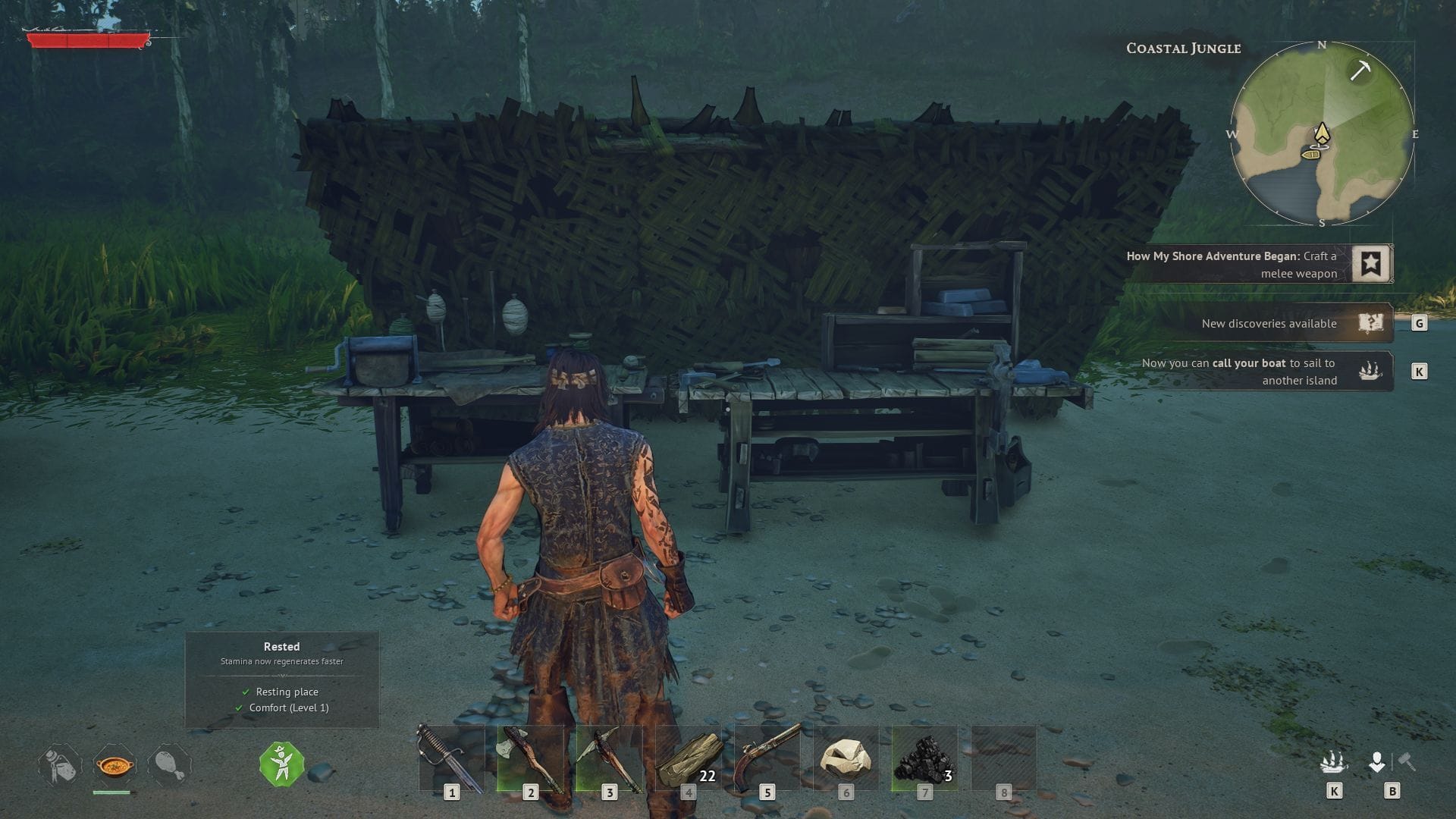
Creating a dedicated server in Windrose can revolutionize how a group of friends enjoys the game. Instead of waiting for one person to be online, this server keeps the world active 24/7. The setup process is seamlessly integrated with Steam, requiring no additional tools beyond what the game provides.
This dedicated server supports all the world settings available in the standard game, along with additional server-specific options. Here’s a guide on how to set up a dedicated server in Windrose.
Steps for Configuring a Dedicated Server in Windrose
1) Install the Server Tool from Steam
The Windrose Dedicated Server tool is included with the purchase of Windrose on Steam and can be found in the Tools section of the Steam Library. Follow these steps to locate and install it:
- Open the Steam Library and select “Tools” from the dropdown filter above the game list.
- Search for “Windrose Dedicated Server” and install it like any other game or tool.
After installation, run the tool once to set up the necessary configurations. Then, locate the server files by right-clicking on Windrose Dedicated Server in the library, selecting Manage, and then Browse Local Files.
2) Choose between Simple and Advanced Setup
When inside the local files folder, you have the option to choose between two setup methods:
Simple Setup for Windrose
You can launch the server using either StartServerForeground.bat or WindroseServer.exe. After starting the server with StartServerForeground.bat, an invite code will appear in the console window. To connect, launch the game and go to Play, then Connect to Server, and enter the invite code.
Advanced Setup in Windrose
For advanced users, editing two specific JSON files is required for more in-depth server settings. These files are automatically generated on the server’s first run and include ServerDescription.json for main server settings and WorldDescription.json for world-specific settings.
Remember to stop the server before editing these files to prevent any data loss.
Key Files and Folders in the Dedicated Server of Windrose
After the server’s initial run, the folder structure will include:
- StartServerForeground.bat
- WindroseServer.exe
- R5\Saved\SaveProfiles\Default\ServerDescription.json
- R5\Saved\SaveProfiles\Default\RocksDB\<version>\Worlds\<world_id>\WorldDescription.json
- R5\Saved\Logs\
Updates for the dedicated server tool are managed through Steam like any other software. Always stop the server before applying updates, and then restart it after the update is complete.
Third-Party Hosting Options for Windrose
Players who prefer not to host the server on their own hardware via Steam can opt for third-party hosting services. These services manage the server’s uptime and infrastructure, providing a hassle-free solution for consistent server availability.
Current third-party hosting options for Windrose include:
These hosting providers handle the dedicated server in Windrose on their infrastructure, offering reliable uptime for groups looking to play without the technical responsibilities of self-hosting.
Edited by Rishi Pallav