Table of Contents

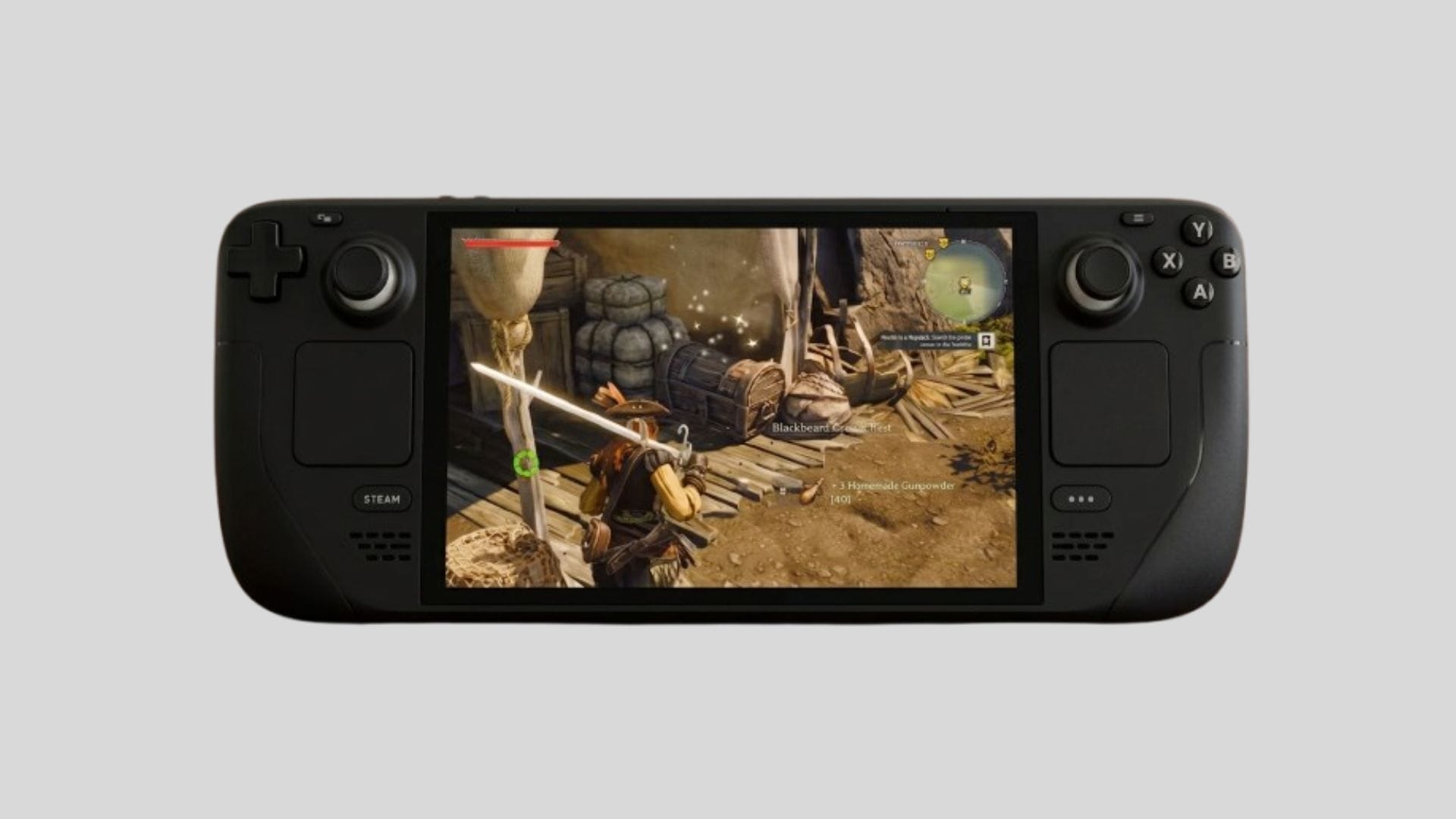
Windrose is now playable on the Steam Deck. However, this open-world pirate adventure is developed on Unreal Engine 5, which demands high resources; the handheld console might face challenges in running it smoothly. By adjusting some graphics settings, you can achieve playable framerates to embark on your pirate journey and explore the seas on the portable device.
This piece delves into the optimal settings for enhancing the performance of Windrose on the Steam Deck.
Top recommendations for optimizing Windrose on the Steam Deck
Optimizing Windrose on the Steam Deck can be a bit tricky as you aim to balance visual quality with smooth gameplay. The handheld console may struggle with generating frames seamlessly for this specific title. Therefore, you need to make precise adjustments to ensure a playable framerate.
To achieve stable performance on the Steam Deck, make the following adjustments to the upscaler and graphics settings:
Display settings
- Display: Fullscreen
- Upscaler: TSR
- Render Resolution: 45%
- Frame Generation Type: Off
- Resolution: 1280×720
- Vertical Sync: Off
- Frame Rate Limit: 30 FPS
Graphics settings
- Resolution Upscaling: 60%
- Global Illumination: Low
- Shadows: Low
- Anti-Aliasing: Medium
- View Distance: Near
- Textures: Medium
- Effects: Low
- Reflections: Low
- Post Processing: Low
- Grass Draw Distance: Low
- Shader Quality: Low
- Motion Blur: Off
- Blood Wounds Effect: On
- Character Dirt Effect: Off
- Lens Dirt Effect: Off
Despite the Frame Generation settings being problematic currently, utilizing upscaling technology like TSR can enable you to run Windrose smoothly on the Steam Deck. Maintaining a resolution of around 720p, a Render Resolution of 40%-45% delivers optimal results.
When lowering the visual settings, you may observe a slight shimmering effect, but it shouldn’t significantly impact your overall gaming experience. Additionally, remember to disable Vertical Sync to minimize input delays. For consistent performance, it’s advisable to cap the Frame Rate Limit at 30 FPS.
Lastly, to compensate for reduced visual clarity, balance both texture and Anti-Aliasing settings at a medium level.
Following these settings should ensure a smooth performance for Windrose on the Steam Deck. Although the game’s controller support may not be perfect, you can customize button mappings for a seamless gameplay experience.
Edited by Akash Paul