Table of Contents
The Ultimate Guide to Optimizing Gothic 1 Remake Settings for Low-End PCs
Embark on a journey to the mystical world of Gothic 1 Remake, where the beloved RPG classic has been reborn with enhanced visuals, immersive lighting, and intricate details that breathe new life into the game. However, with this visual overhaul comes a demand for higher hardware capabilities, posing a challenge for players with older or entry-level gaming PCs.
Overcoming Hardware Limitations
While the game may push the limits of your low-end PC, fear not, as strategic optimizations in the settings can unlock the potential for a seamless 1080p gaming experience. In this comprehensive guide, we will unveil the best settings to elevate your frame rates while preserving visual excellence.
Best Gothic 1 Remake Settings for Low-End PC
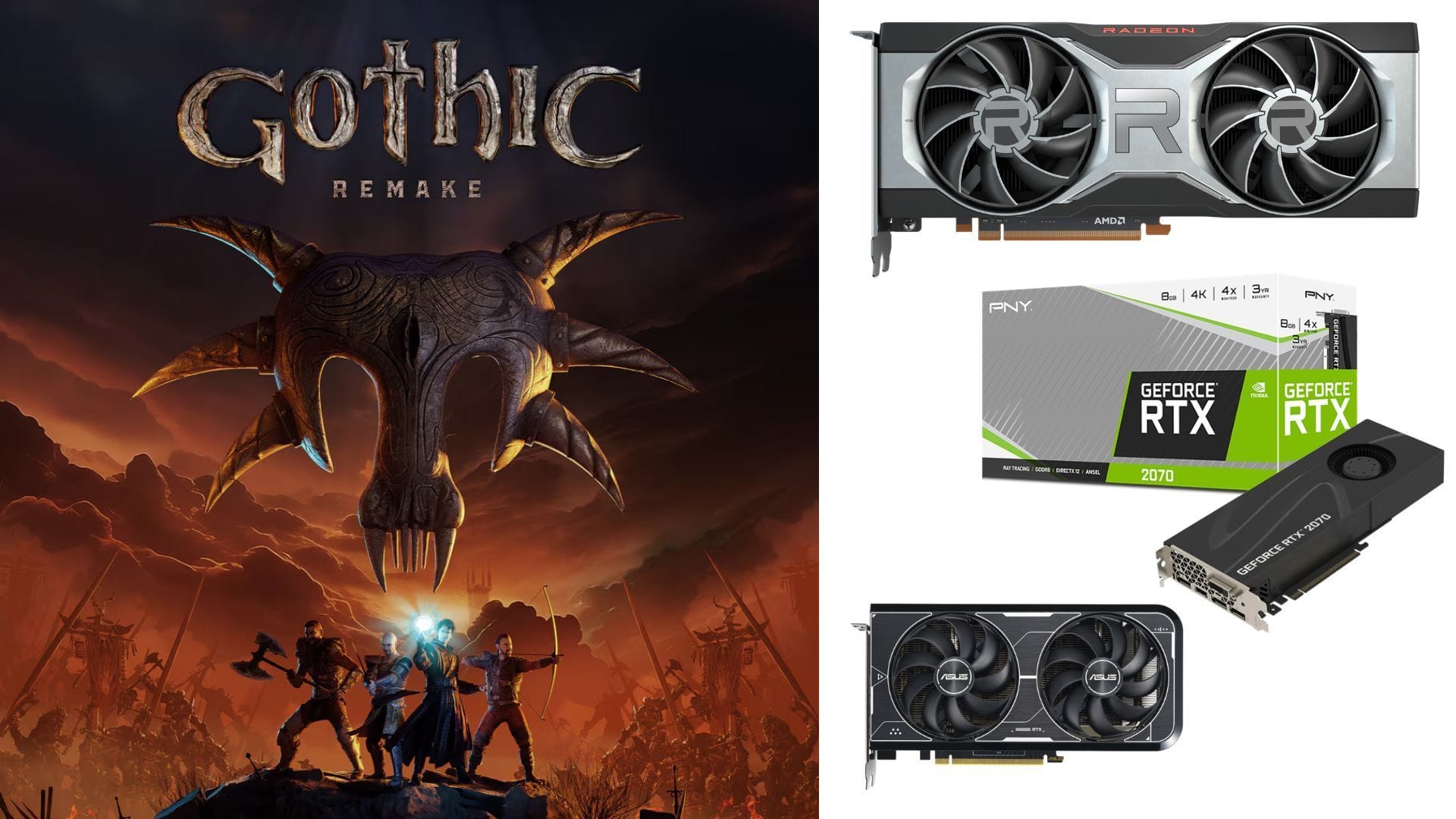
For optimal performance, Gothic 1 Remake mandates a minimum of 8GB VRAM to run smoothly at recommended settings. This requirement aligns with newer GPUs like the Nvidia GeForce RTX 2070, 2080, 3060, 3070, 4060, and the latest RTX 5050 and 5060 cards. Additionally, AMD users can rely on Radeon RX 6600 XT, 6700 XT, 7600, as well as Intel’s Arc B570 and B580.
While modern GPUs effortlessly meet the VRAM threshold, older PC configurations may need fine-tuning to sustain 1080p gameplay.
Graphics Settings for 1080p:
Display settings:
- Display: Default
- Display mode: Fullscreen
- Resolution: 1920 x 1080
- VSync: Off
- Frame rate limit: Unlimited
- Gamma: 2.2
- Field of view: 75
Graphics settings:
Temporal Upscaling
- Upscaler: Nvidia DLSS 4.5 / AMD FSR 3.1.4
- Upscaling quality: Quality
- Frame Generation Mode: Off
Latency Optimization
- Nvidia Streamline Reflex: On
- Nvidia Reflex Boost: Off
Post-Processing
- Motion blur intensity: 50
- Bloom intensity: 50
- Depth of field intensity: 0
- Ambient occlusion intensity: 50
- Sharpening intensity: 60
Color Correction
- Saturation: 0
- Contrast: 0
- Brightness: 0
- Extra Interior Exposure: Default
Render Quality
- Quality preset: Medium
- View distance quality: Medium
- Anti-aliasing quality: Medium
- Shadow quality: Medium
- Global illumination quality: Medium
- Reflection quality: Medium
- Post-processing quality: Medium
- Texture quality: Medium
- Effects quality: Medium
- Foliage quality: Medium
- Shading quality: Medium
- Landscape quality: Medium
- Wind quality: Low
For mid-range PCs boasting at least 8GB VRAM, running the game at Medium graphics should deliver a consistent 60 FPS experience at 1080p. High graphics settings can also be explored, albeit with a slight performance dip to around 50-55 FPS.
Pairing these settings with Nvidia DLSS or AMD FSR upscaling enhances both performance and visual fidelity. Opt for Quality mode for superior visuals, with the flexibility to switch to Balanced or Performance mode based on your preference.
For lower-end cards, consider toggling Frame Generation alongside Low graphics settings to maintain a stable performance.
Adjust the post-processing settings to align with your visual preferences. Only enable VSync if you lack a gaming monitor supporting Nvidia G-Sync or AMD FreeSync.
That wraps up our comprehensive guide on optimizing Gothic 1 Remake settings for low-end PCs. By implementing these recommended configurations, you can achieve a harmonious blend of high performance and visual allure on your modest gaming rig, provided it meets the game’s minimum system prerequisites.
Explore more insightful articles on Sportskeeda:
Edited by Adith Pramod