Table of Contents
Welcome to the Next Level of Gaming: Halo Campaign Evolved
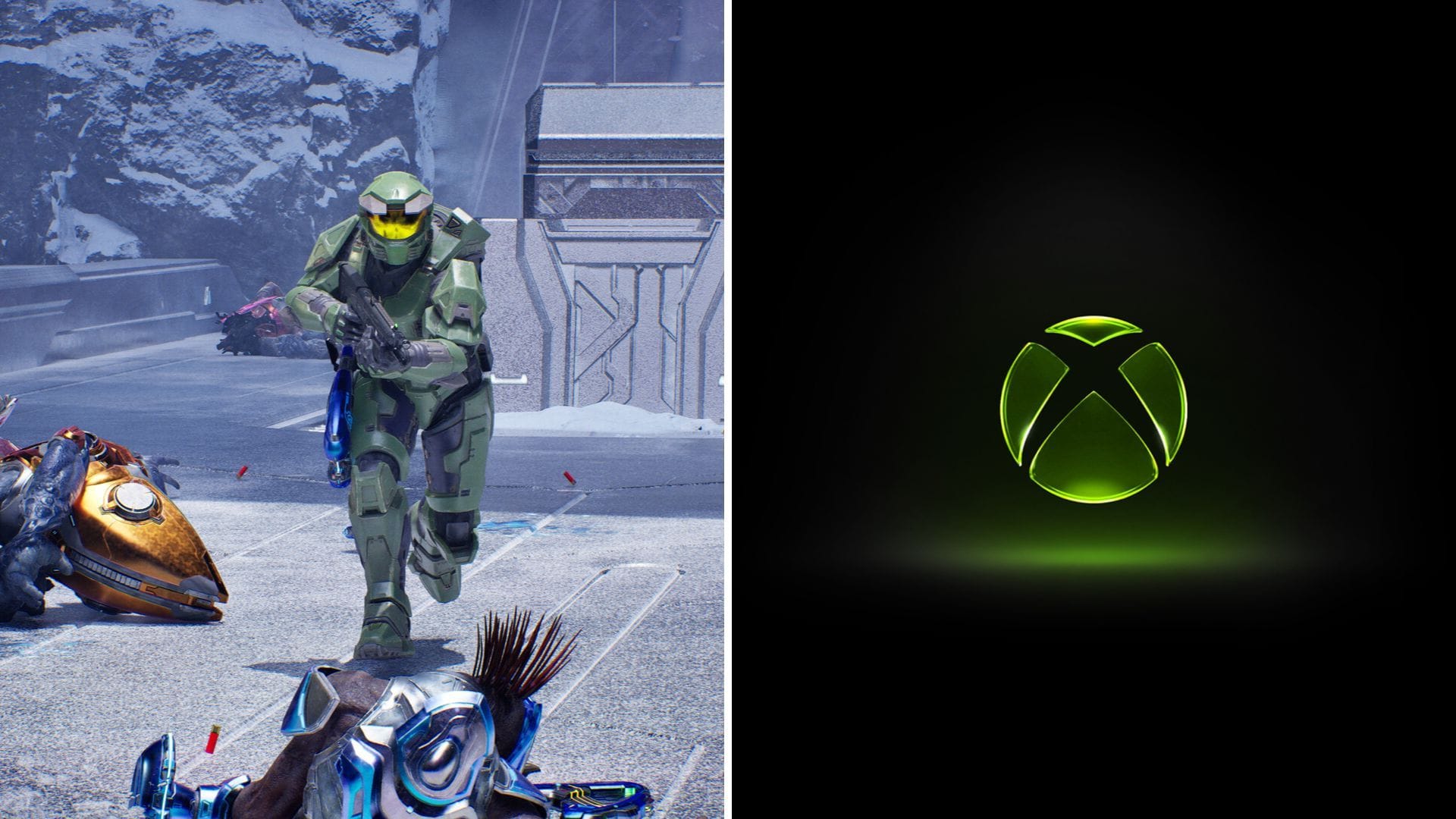
Attention all gamers! The highly anticipated Halo Campaign Evolved has finally arrived in Early Access exclusively on Xbox Series X|S. This release offers players a chance to relive the magic of the original Halo Combat Evolved game from 2001 in a completely remastered version. However, as with any new launch, there may be some hurdles to overcome, such as crashes, launch failures, or loading screen glitches. Don’t worry, we’ve got you covered with some expert tips to help you navigate through these early-stage challenges.
How to Troubleshoot Crashing Issues in Halo Campaign Evolved on Xbox
If you find yourself dealing with crashes, freezes, or launch problems while trying to play Halo Campaign Evolved on your Xbox, the root cause could be related to a variety of factors such as corrupted game files, outdated console software, cached system data, or incomplete game files. Without a specific error code, pinpointing the exact issue can be tricky. Nevertheless, there are some tried-and-true methods that often prove effective in resolving launch-related issues for newly released games.
Update Your Xbox
Keeping your Xbox system up to date is crucial to ensure compatibility with the latest games. Follow these steps to update your console:
- Press the Xbox button on your controller.
- Navigate to Profile & System > Settings.
- Access System and select Updates.
- If an update is available, install it and restart your Xbox.
Check for Game Updates
Developers often release patches and updates shortly after a game’s launch. Make sure you’re running the latest version of Halo Campaign Evolved by following these steps:
- Open My Games & Apps.
- Select See All, then choose Manage.
- Head to the Updates section.
- Download any available updates for the game.
Clear the Xbox Cache
Temporary cached files can sometimes interfere with new installations. To address this, clear the cache on your Xbox using these steps:
- Turn off your Xbox.
- Unplug the power cable.
- Wait for about five minutes.
- Plug the console back in and power it on.
- Relaunch Halo Campaign Evolved.
Seek Assistance from Halo Support on Xbox
The official @HaloSupport account on Xbox is your go-to resource for play guides, troubleshooting articles, and other assistance related to the game. If you encounter crashes, matchmaking issues, or bugs, regularly check this account for the latest updates and official workarounds.
Reinstall the Game
If all else fails, consider reinstalling Halo Campaign Evolved to address any persistent issues. A fresh installation can often rectify missing or damaged files. Follow these steps to uninstall and reinstall the game:
- Go to My Games & Apps.
- Locate Halo Campaign Evolved.
- Press the Menu button and select Uninstall.
- Head to the Xbox Store and reinstall the game.
By implementing these potential solutions, you’ll be well-equipped to tackle any technical hurdles that come your way while playing Halo Campaign Evolved on Xbox. Get ready to immerse yourself in the iconic Halo universe like never before!
Edited by Harshit Singh