Table of Contents
The Hidden Culprit Behind Your PC’s Nagging Issues
Your Windows PC may appear to be running smoothly on the surface, but hidden beneath the surface, there could be persisting issues causing random audio crackles, mouse glitches, USB audio dropouts, or sudden system freezes. These issues can be frustrating, especially when your CPU and GPU are performing well, and your gaming experience seems unaffected.
Understanding High DPC Latency: The Technical Jargon Unraveled
High DPC latency, short for Deferred Procedure Call latency, may sound like a complex technical problem at first glance. However, once you grasp the concept, diagnosing it becomes more manageable. Unlike the common practice of blindly disabling Windows services to solve such issues, the key lies in systematic measurement, driver identification, variable adjustment, and subsequent testing.
Before delving further into this, let’s clarify some terminologies:
- DPC: Deferred Procedure Call
- ISR: Interrupt Service Routine
- IRQL: Interrupt Request Level
- ETW: Event Tracing for Windows
- WPR: Windows Performance Recorder
- WPA: Windows Performance Analyzer
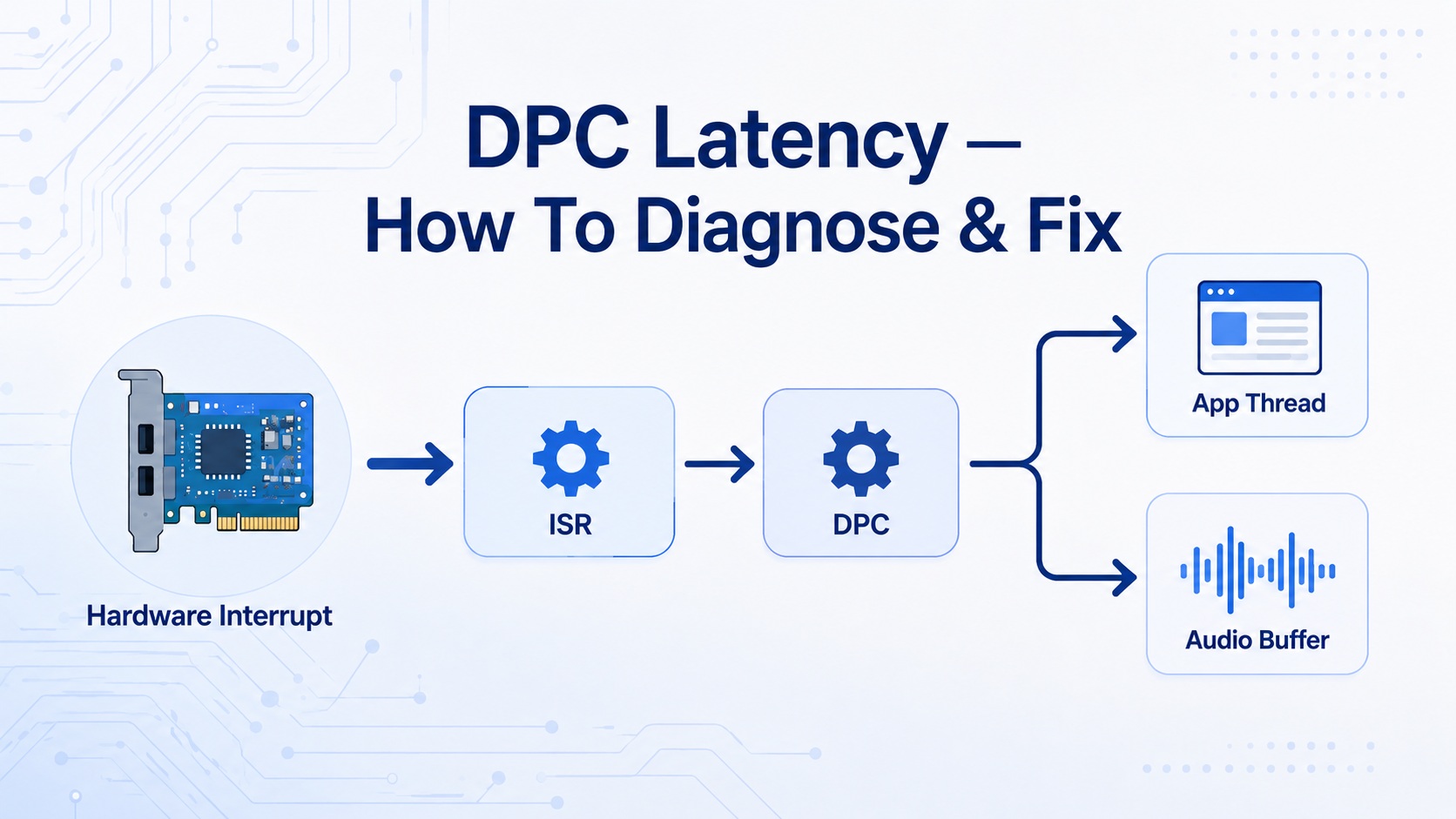
In simple terms, when a device interrupts the CPU, its driver initiates an ISR, which may queue a DPC to complete the task. The issue arises when a driver spends excessive time in ISR or DPC, preventing normal application threads from running smoothly on the processor core or thread. This disruption can lead to missed deadlines for time-sensitive tasks like audio playback, live capture, networking, or gaming frame delivery.
High DPC latency manifests as system-level hiccups, audio disturbances, input delays, and frame pacing irregularities, distinct from typical low framerate issues.
Symptoms of High DPC Latency: What to Look Out For
High DPC latency predominantly manifests as audio glitches but can also affect other real-time responsiveness aspects. Common symptoms include:
- Audio crackling, popping, or dropouts
- USB audio interface glitches
- Mouse pointer hitches or input stalls
- System-wide freezes
- Inconsistent game frame pacing
- Streaming or capture tool malfunctions
- Network packet jitter or connectivity hiccups
- DPC Watchdog Violation BSoDs in severe cases
However, it’s crucial to differentiate between symptoms caused by high DPC latency and those triggered by excessive hard page faults.
Before Blaming DPC Latency, Consider Hard Page Faults and Memory Pressure
Hard page faults, where Windows retrieves data from storage instead of RAM, can mimic high DPC latency symptoms. These faults occur when an application necessitates a memory page not present in physical memory, leading to delays as Windows fetches it from storage.
Aggressive memory paging due to insufficient system memory can exacerbate symptoms such as audio crackles, freezes, input delays, and application stalls. In such cases, the user may mistake memory pressure issues for DPC latency.
If you’re experiencing these symptoms alongside high memory usage, start by monitoring and optimizing system memory allocation. Closing background applications and reducing memory-intensive tasks can alleviate these issues.
Utilize tools like Resplendence Software’s LatencyMon to analyze ISR/DPC behavior and hard page faults effectively.
Conclusion
Unraveling the mysteries of high DPC latency and its impact on system performance requires a systematic approach to diagnosis and mitigation. By understanding the intricacies of CPU interrupts, driver routines, and memory management, users can address underlying issues causing audio disturbances, input delays, and system freezes effectively. Remember, not all system glitches can be attributed to DPC latency, so thorough investigation and optimization are key to enhancing overall performance and user experience.
In the world of gaming, nothing is more frustrating than experiencing stuttering audio or lag during gameplay. These issues can be caused by a variety of factors, but one common culprit is high DPC latency. While many gamers immediately jump to blaming device drivers for these problems, it’s essential to take a more systematic approach to diagnosing and fixing the issue.
### What Usually Causes High DPC Latency?
When it comes to high DPC latency, the root causes can often be traced back to a few key areas.
#### Device Drivers
Device drivers play a significant role in DPC latency issues. Network drivers, Bluetooth drivers, GPU drivers, and more can all contribute to high DPC or ISR execution times. Sometimes it’s the driver itself that’s faulty, while other times, external factors like firmware, BIOS/UEFI settings, or device configurations can be to blame.
#### USB Behavior
USB devices, especially audio interfaces, can also be a source of DPC latency spikes. Issues with USB controllers, hubs, or power management settings can lead to audio crackles and other performance problems.
#### Networking
If drivers like ndis.sys or tcpip.sys are flagged by monitoring tools like LatencyMon, it’s worth investigating potential networking issues, particularly if you’re using Wi-Fi.
#### Graphics Devices
In gaming systems, GPU drivers and the Windows graphics kernel path can contribute to audio crackles and stutters. A clean GPU driver reinstall or update may be necessary to address these issues.
#### Power Management and Firmware
Poorly optimized power management settings or firmware can introduce DPC latency spikes. Testing CPU states, USB selective suspend, and other power-related settings can help identify and resolve these issues.
#### Security and Virtualization Layers
Security features, antivirus software, and virtualization technologies can also impact DPC latency. While disabling these features isn’t recommended, they should be considered when troubleshooting latency issues.
### How To Properly Diagnose And Fix High DPC Latency
To diagnose and fix high DPC latency, a systematic approach is essential. Here’s a step-by-step guide to help you identify and resolve latency issues effectively.
#### Step 1: Reproduce The Problem Properly
1. Reboot your PC.
2. Close unnecessary background applications.
3. Open LatencyMon as an administrator.
4. Start the LatencyMon capture.
5. Reproduce the issue for at least 5-10 minutes.
6. Stop the LatencyMon capture.
7. Review the Main, Stats, Processes, and Drivers tabs for potential issues.
#### Step 2: Use LatencyMon The Right Way To Narrow Down The Offending Part
While LatencyMon isn’t perfect, it’s a valuable tool for identifying potential sources of DPC latency. By analyzing the data it provides, you can narrow down the drivers or hardware components causing latency spikes and take targeted actions to address them.
In conclusion, addressing high DPC latency requires a methodical approach that involves identifying the root causes of latency spikes and applying targeted fixes. By following the steps outlined above, gamers can minimize audio crackles, input hitches, and other performance issues to enjoy a smoother gaming experience. In the world of high-performance gaming, ensuring that your system is optimized for real-time audio is crucial. One tool that can help you determine if your system is suitable for real-time audio is LatencyMon. This powerful software not only evaluates your system’s real-time audio capabilities but also identifies drivers with the highest ISR and DPC execution times, as well as reports on hard page faults that can impact performance.
### Exploring LatencyMon Tabs
When using LatencyMon, start by examining the Main tab, but don’t stop there. The real insights lie in the detailed tabs that provide more in-depth information.
#### Drivers Tab
In the Drivers tab, sorting by the highest execution time for DPC routines can reveal if a specific driver is causing latency spikes. Drivers like ndis.sys, tcpip.sys, usbxhci.sys, and Wdf01000.sys are common culprits that could indicate issues with networking, USB controllers, or Windows Driver Framework, among others.
#### Processes Tab
Moving on to the Processes tab, checking for high hard page faults and sorting by the page fault columns can help identify if specific applications are being affected. If your digital audio workstation, game, or audio process is experiencing frequent page faults during performance issues, it may indicate system memory or storage paging problems.
### Step 3: Isolate The Suspected Hardware Device Or Software Part
Once LatencyMon points you in the right direction, it’s time to isolate potential issues. Consider disabling Wi-Fi if networking is the suspect, disconnecting non-essential USB devices, or testing different audio output paths to identify the root cause of the problem.
### Step 4: Confirm With WPA/ETW If LatencyMon Is Not Enough
If you need more detailed analysis, Microsoft’s Windows Performance Recorder (WPR) and Windows Performance Analyzer (WPA) provide deeper insights into DPC/ISR activity by CPU, module, function, and time range. These tools offer a more comprehensive view of system performance compared to LatencyMon’s single execution time metric.
To install WPR and WPA, download the Windows Performance Toolkit from the Windows ADK. Conducting an ETW capture using WPR and analyzing the results in WPA can provide a more thorough understanding of system latency issues.
In conclusion, LatencyMon is a valuable tool for diagnosing real-time audio performance issues, but combining it with WPR and WPA can provide a more in-depth analysis of system latency problems. By following these steps and isolating potential hardware or software culprits, gamers and audio professionals can optimize their systems for seamless performance during intense gaming sessions or audio production tasks.
Unveiling the Secrets of DPC Latency: A Comprehensive Guide
In the world of gaming and content creation, nothing is more frustrating than experiencing audio crackles or frame hitches during crucial moments. These issues can often be attributed to DPC latency, a hidden culprit that can wreak havoc on your system’s performance. In this guide, we will delve deep into the realm of DPC latency, exploring its causes, detection methods, and effective solutions to help you optimize your PC for a seamless experience.
The Detective Work Begins: Capturing and Analyzing DPC Latency
To kick off our investigation, we need to capture an ETW trace using Windows Performance Recorder. By running the command wpr -stop C:\Traces\DpcLatency.etl “DPC latency reproduction” -skipPdbGen, we can save the trace to a specified location while skipping PDB symbol generation for a faster export. Remember to keep the capture concise, focusing on the time window when the issue occurs.

Next, open the DpcLatency.etl file in Windows Performance Analyzer (WPA). Utilize the DPC/ISR graph and apply presets that group duration by CPU and module/function. This analysis will reveal if a specific module is monopolizing DPC/ISR time and whether it aligns with the observed glitches.
Our aim is not merely to identify a driver with high numbers but to establish a correlation between spikes and problems. If audio disturbances coincide with DPC/ISR spikes from a particular module, the evidence becomes significantly more compelling.

Step 5: Apply Fixes In The Right Order
1. Update Or Roll Back The Suspect Driver
If a specific driver is suspected, prioritize updating it from the device or motherboard vendor. For critical drivers like chipset, USB, network, Bluetooth, audio, and storage, the OEM’s support page often holds more relevance than Windows Update. Remember, newer isn’t always better. If issues arose post an update, consider rolling back – especially for GPU, Wi-Fi, Bluetooth, and audio interface drivers.
2. Update BIOS/UEFI And The Motherboard Chipset Driver
Platform behavior, power states, and firmware quirks can impact DPC latency. Check for BIOS/UEFI updates containing stability, power, or compatibility fixes. This step is crucial for laptops, where the OEM’s firmware controls many platform aspects through ACPI and vendor software.
3. Test USB Power Management
USB connections play a significant role in DPC latency. Experiment with different ports, prioritize rear motherboard ports, and avoid front-panel ports or hubs. Disable USB power management and test connections to isolate USB-related issues.
Additionally, try disabling USB selective suspend in Windows power plan settings for a methodical troubleshooting approach.
4. Test Networking Separately
If network-related drivers like ndis.sys or tcpip.sys are implicated, disable Wi-Fi and test Ethernet connections. Adjust advanced adapter properties to optimize networking performance gradually.
5. Test GPU Drivers And Display Configuration
For GPU-related glitches, consider a clean driver installation or revert to a stable driver version. Eliminate unnecessary overlays and monitor tools during testing to pinpoint the root cause accurately.
6. Check Power Plans, Core Parking, And CPU Idle Behavior
Power management settings can influence system responsiveness. Experiment with power modes, USB settings, and CPU core parking to improve performance without compromising efficiency.
7. Test VBS, HVCI, Hyper-V, And Security Layers
On Windows 11 systems, features like Memory Integrity/HVCI and VBS can impact latency. Disable these features temporarily to assess their impact on performance, especially for gaming or content creation tasks.
Conclusion: Mastering DPC Latency for a Seamless Experience
By following these systematic steps, you can unravel the mysteries of DPC latency and optimize your system for uninterrupted gaming and content creation. Remember, precision and patience are key in diagnosing and resolving latency issues. With a strategic approach and attention to detail, you can achieve a smooth and seamless computing experience.
Welcome to the World of DPC Latency: Understanding and Troubleshooting
When it comes to optimizing your PC for performance, dealing with DPC latency can be a daunting task. From driver issues to system memory pressure, various factors can contribute to latency problems that manifest as audio crackling, system freezes, input hitches, USB glitches, or stutter. In this guide, we will delve into the world of DPC latency, exploring its nuances and providing practical tips on troubleshooting and optimization.
Avoid Obscure Registry Tweaks Unless You Know Exactly What You Are Changing
There are numerous online resources that offer “fix packs” for DPC latency, promising to enhance performance through tweaks to timer settings, MSI mode, interrupt affinity, HPET behavior, and more. While some of these changes can be beneficial in specific cases, others may have little to no effect or even worsen the situation. It’s crucial to understand the impact of each tweak before implementing it, especially if you are unfamiliar with its function or how to reverse it.
For instance, adjusting interrupt affinity can be advantageous when a single device is overwhelming a CPU, as indicated by a poor distribution of DPC/ISR activity in WPA. However, such advanced fixes should not be treated as one-size-fits-all solutions. Similarly, modifications like forcing MSI mode or altering threaded DPC behavior require careful consideration and monitoring, as they are not set-and-forget optimizations.
Before making any registry changes, ensure that you fully comprehend their implications and have a plan for reverting them if necessary.
What About Linux And macOS?
While Windows is not a hard real-time operating system, the performance of Linux and macOS in latency-sensitive scenarios can vary depending on configuration and workload requirements. Linux, with its ability to be tuned for real-time behavior through features like real-time kernels, CPU isolation, and IRQ affinity tuning, is well-suited for professional and industrial applications. However, a standard desktop Linux distro may still face latency issues under certain conditions.
macOS, known for its strong reputation in the audio realm due to Apple’s hardware/software integration and Core Audio stack, offers a reliable platform for latency-sensitive tasks. Nevertheless, macOS is not immune to driver, plugin, or memory-related challenges, despite its consistent performance attributed to Apple’s platform control.
In summary, Linux can excel in latency-sensitive environments when properly configured, macOS provides stability for audio workloads, and Windows remains competitive when optimized for driver compatibility and power management. The key challenge with Windows lies in the diverse PC ecosystem, where a single faulty driver or firmware can disrupt real-time performance on an otherwise capable machine.
Final Words
In conclusion, addressing DPC latency issues requires a systematic approach that involves diagnosing, isolating, and resolving potential causes. By following a structured workflow that includes monitoring system performance, identifying problematic drivers, and testing solutions methodically, users can effectively troubleshoot latency issues and optimize their system for improved performance.

Why You Should Play the Latest RPG Game, “Realm of Legends”
If you’re a fan of role-playing games, then you definitely don’t want to miss out on the latest release, “Realm of Legends.” This game has been creating quite a buzz in the gaming community, and for good reason. With stunning graphics, immersive gameplay, and a captivating storyline, “Realm of Legends” is sure to keep you hooked for hours on end.
Immersive Gameplay
One of the standout features of “Realm of Legends” is its immersive gameplay. You’ll find yourself completely engrossed in the world of the game, exploring new lands, battling fearsome creatures, and completing quests that will test your skills as a player. The game offers a perfect balance of exploration, combat, and puzzle-solving, keeping you engaged and entertained throughout.
Stunning Graphics
Another aspect of “Realm of Legends” that sets it apart is its stunning graphics. The game features breathtaking visuals that bring the world to life in vivid detail. From lush forests to dark dungeons, every corner of the game is beautifully rendered, making it a visual feast for the eyes. The attention to detail in the graphics is truly remarkable, immersing you even further into the game’s world.
Captivating Storyline
While gameplay and graphics are important, a compelling storyline is what truly sets “Realm of Legends” apart. The game’s narrative is rich and engaging, drawing you in from the very beginning. As you progress through the game, you’ll uncover secrets, unravel mysteries, and make choices that will impact the outcome of the story. The well-crafted storyline adds depth to the game, making it more than just a series of quests and battles.
Conclusion
In conclusion, “Realm of Legends” is a must-play for any RPG fan. With its immersive gameplay, stunning graphics, and captivating storyline, this game offers a truly unforgettable gaming experience. So don’t wait any longer – dive into the world of “Realm of Legends” and embark on an epic adventure like no other.
**Unravel Two: A Co-op Adventure Like No Other**
In the world of gaming, cooperative gameplay has become increasingly popular. And with the release of Unravel Two, players are in for a treat with a unique co-op adventure that stands out from the crowd.
### A New Twist on Co-op Gameplay
Unravel Two takes the concept of cooperative gaming to a whole new level. Instead of simply playing alongside a friend, players must work together to control two characters, Yarny and a new blue companion, as they navigate through puzzles and challenges. This dynamic duo requires teamwork and communication to succeed, adding an extra layer of depth to the gameplay experience.
### Stunning Visuals and Immersive Soundtrack
One of the standout features of Unravel Two is its breathtaking visuals and immersive soundtrack. The game’s vibrant environments and detailed character designs draw players into its world, creating a truly captivating experience. And with a soundtrack that perfectly complements the on-screen action, players will find themselves fully immersed in the game from start to finish.
### A Heartwarming Story of Friendship
At its core, Unravel Two is a story about the power of friendship. As Yarny and his blue companion embark on their journey together, players will witness the bond between them grow stronger with each challenge they overcome. The game’s narrative is both heartwarming and emotional, making it a truly memorable experience for players of all ages.
### Conclusion
In conclusion, Unravel Two offers a co-op adventure like no other. With its unique gameplay mechanics, stunning visuals, and heartfelt story, this game is a must-play for fans of cooperative gaming. So grab a friend, jump into the world of Unravel Two, and experience the magic of teamwork and friendship in a whole new way.