Table of Contents
Welcome to the Fix-It Guide for Wardogs Launch Issues on Steam
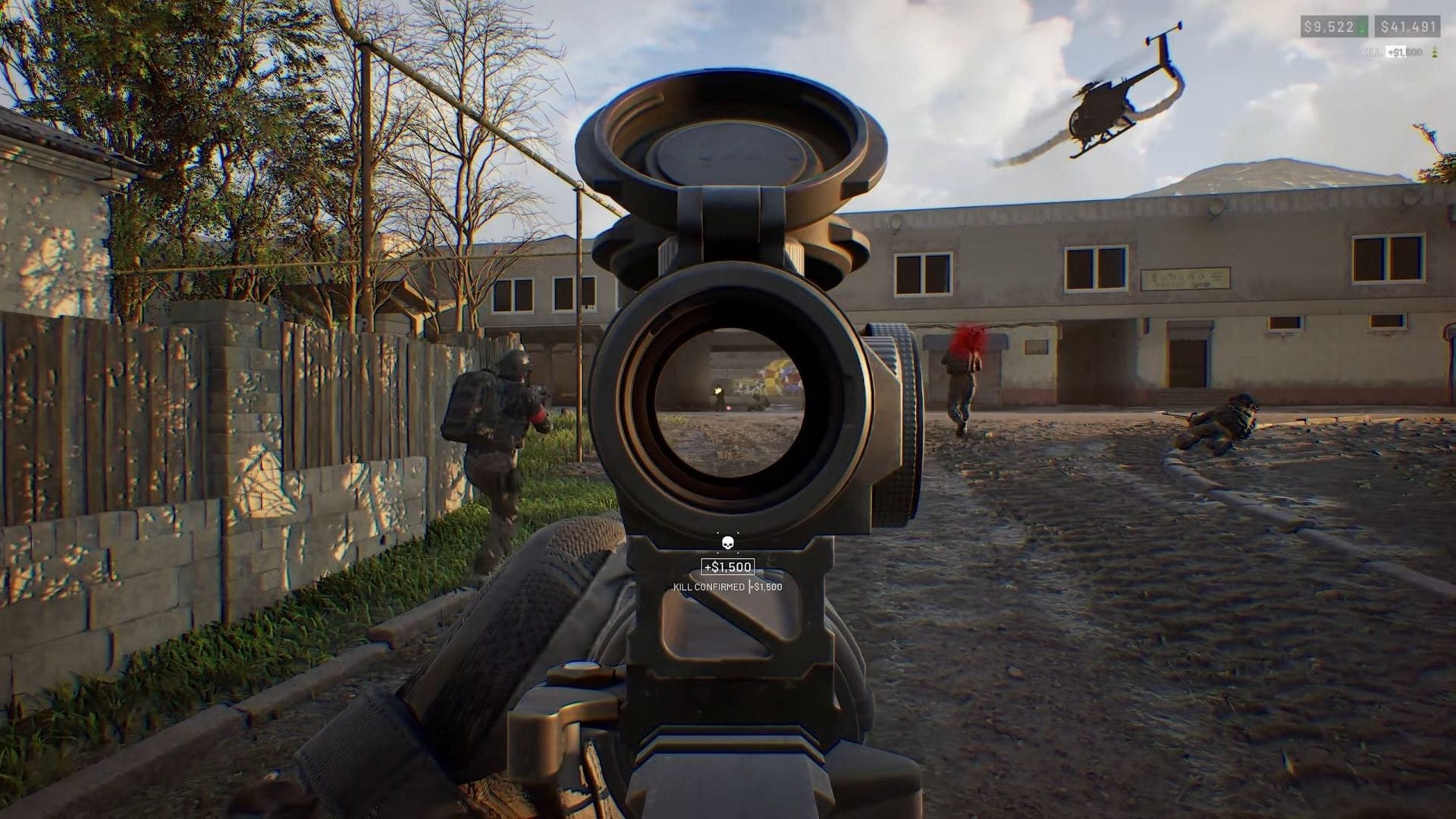
Are you ready to dive into the adrenaline-pumping world of Wardogs, but finding yourself stuck with launch issues on Steam? Don’t worry, we’ve got you covered. In this guide, we’ll walk you through some potential fixes to get Wardogs up and running smoothly so you can enjoy all the action-packed gameplay it has to offer.
Possible Fixes for Wardogs Not Working on Steam
Let’s explore the best solutions to resolve the Wardogs launch issues on Steam:
- Verify Wardogs’ game files on Steam
- Install the latest GPU driver
- Restart the GPU driver after a crash
- Disable ReBar in BIOS
- Close Discord, MSI Afterburner, and more
1) Verify Wardogs’ Game Files on Steam
If Wardogs’ game files are causing trouble, a quick verification can do the trick:
- Launch Steam and locate Wardogs in your Library
- Click on the Gear icon and select Properties
- Go to the Installed Files tab and click Verify integrity of game files
- Let the process complete to fix any corrupt or missing files
Remember to restart your PC before relaunching the game for the changes to take effect.
2) Install the Latest GPU Driver
Given that Wardogs is powered by Unreal Engine 5, having the latest GPU driver is crucial for a smooth launch:
Head over to the official website to download and install the most recent graphics card driver.
After installation, don’t forget to restart your PC for the updates to kick in.
3) Restart the GPU Driver After a Crash
If Wardogs experienced a crash, it might have affected your GPU driver. Here’s how you can reset it without a full system reboot:
Simply press Ctrl + Shift + Win + B to restart the GPU driver and then try relaunching Wardogs.
4) Disable ReBar in BIOS
Resizable BAR (ReBar) can sometimes hinder game launches. Try disabling it in your BIOS settings to see if it resolves the issue. Remember, the steps may vary based on your motherboard model.
5) Close Discord, MSI Afterburner, and More
Certain applications like Discord and MSI Afterburner can create overlays that interfere with games. Close these apps along with any unnecessary ones before relaunching Wardogs.
Conclusion
With these potential fixes at your disposal, you’re now equipped to tackle the Wardogs launch issues on Steam. Follow these steps diligently, and you’ll be back in the game in no time, ready to immerse yourself in the intense world of tactical warfare that Wardogs has to offer.
Edited by Suraj Bhowal