Table of Contents
The Ultimate Guide to Optimizing Graphics Settings for Call of Duty Modern Warfare 4 on PC
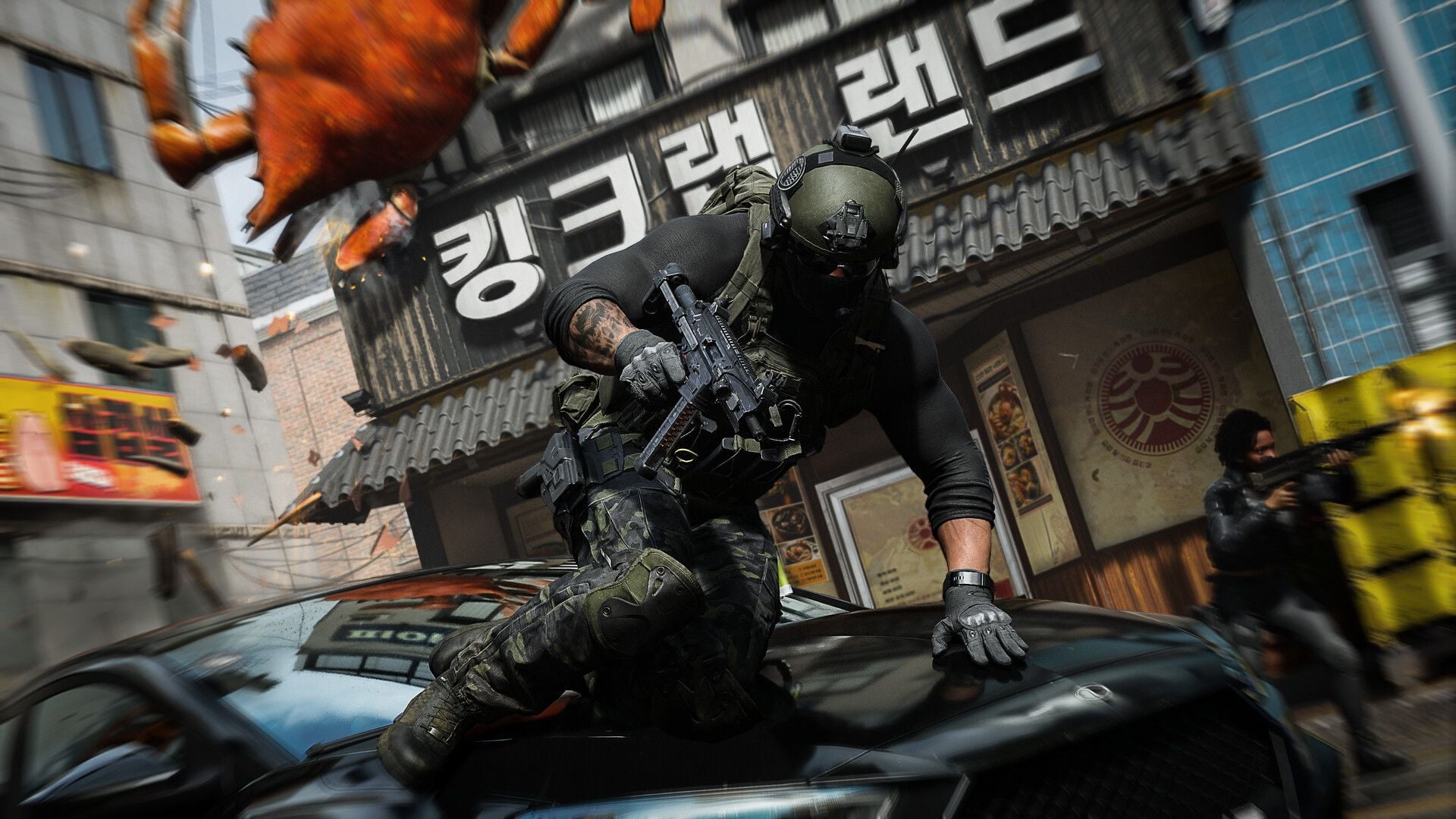
Call of Duty Modern Warfare 4 has finally arrived, and for gamers looking to experience the game at its best, the PC platform offers unparalleled opportunities for high-resolution gaming with ray-traced graphics. Whether you’re a seasoned player or a newcomer to the franchise, optimizing your graphics settings can significantly enhance your gameplay experience. In this guide, we’ll delve into the best graphics settings to use specifically for the story campaign in Call of Duty Modern Warfare 4.
Why PC is the Best Platform for Call of Duty Modern Warfare 4
PC gaming provides players with the flexibility to fine-tune their gaming experience according to their hardware capabilities. While the online multiplayer mode may require sacrificing visual fidelity for performance, the single-player campaign allows players to push their graphics settings to the limit without compromising on frame rates.
Optimizing Graphics Settings for the Campaign
When it comes to optimizing graphics settings for the Call of Duty Modern Warfare 4 campaign, the Quality tab in the game settings menu offers a plethora of options to customize your visual experience. To strike the perfect balance between stunning visuals and smooth performance, consider the following settings:
Global Quality
- Graphics Preset: Custom
- Frame Generation: Off
- Ray Tracing: On
Upscaling & Anti-Aliasing
- Resolution Scaling Technique: As per GPU
- VRAM Scale Target: 90
- Texture Resolution: High
- Texture Filter Anisotropic: High
- Detail Quality: High
- Particle Quality: High
- Bullet Impacts: On
- Persistent Effects: On
- Shading Quality: High
Shadow & Lighting
- Shadow Quality: High
- Shadow Filtering Quality: High
- Screen Space Shadows: High
- Occlusion and Screen Space Lighting: High
- Screen Space Reflections: High
- Static Reflection Quality: High
Environment
- Terrain Quality: High
- Volumetric Quality: High
- Deferred Physics Quality: High
- Weather Grid Volumes Quality: Normal
- Water Quality: All
After applying these settings, dive into the Call of Duty Modern Warfare 4 campaign to witness the stunning visuals and immersive gameplay.
Conclusion
By optimizing your graphics settings for the Call of Duty Modern Warfare 4 campaign on PC, you can elevate your gaming experience to new heights. With the right balance between visual fidelity and performance, you can fully immerse yourself in the epic storytelling and intense action of this iconic franchise. Take control of your gameplay experience and prepare to be blown away by the breathtaking graphics of Call of Duty Modern Warfare 4.